
Disclosure: This post contains affiliate links. If you click through and make a purchase, we may earn a small commission at no extra cost to you. Thank you for supporting this site!
You are a student. You have a laptop, a phone, and a growing pile of half-filled notebooks. You’ve tried digital note-taking, but it felt like a complicated solution to a simple problem. You ended up with a dozen apps, a stylus that keeps disconnecting, and a workflow that requires more energy than it saves. This is not a setup problem. It is a strategy problem. The best note-taking setup for a student isn’t the most expensive device or the most feature-rich app. It is a deliberate combination of hardware and software that aligns with how your brain actually processes, stores, and retrieves information. The options span from a $30 reMarkable 2 with a missing nib to a $1,200 iPad Pro setup. The winner is not what you expect. This article will give you a specific device, a specific app, and a specific workflow that can save you 10 hours a week and meaningfully improve your recall. No fluff. No affiliate traps. Just a system that works.
| Pick | Best for |
|---|---|
| The Core Problem: Why Your Current System is Failing | Most students fall into one of three traps. |
| The Device: The iPad (9th Generation) with a Paperlike Screen Protector | I am not recommending the iPad Pro. |
| The App: GoodNotes 6 (Paid, $9.99 One-Time) | Compared against Notability (subscription model, $14.99/year), OneNote (free), Nebo ($7.99), … |
| The Stylus: Logitech Crayon ($69.99) vs. First-Gen Apple Pencil ($99) | The Apple Pencil is the gold standard for latency: 9ms response time, tilt sensitivity, pr… |
| The Workflow: The Capture-Process-Retrieve Method | This is the core of the system. |
| Export and Lock-In: The Backup Strategy | Here is the problem with digital note-taking: if GoodNotes goes bankrupt, or Apple changes… |
11 min read
In This Article
- The Core Problem: Why Your Current System is Failing
- The Device: The iPad (9th Generation) with a Paperlike Screen Protector
- The App: GoodNotes 6 (Paid, $9.99 One-Time)
- The Stylus: Logitech Crayon ($69.99) vs. First-Gen Apple Pencil ($99)
- The Workflow: The Capture-Process-Retrieve Method
- Export and Lock-In: The Backup Strategy
- Pricing Reality: The Total Cost of Ownership
- Frequently Asked Questions
Key Takeaways
- The Core Problem: Why Your Current System is Failing
- The Device: The iPad (9th Generation) with a Paperlike Screen Protector
- The App: GoodNotes 6 (Paid, $9.99 One-Time)
- The Stylus: Logitech Crayon ($69.99) vs. First-Gen Apple Pencil ($99)
The Core Problem: Why Your Current System is Failing
Most students fall into one of three traps. The first is the “all-digital” trap: typing every lecture into a document, believing more words equals more learning. Research from Princeton and UCLA (2014) showed that verbatim note-takers perform worse on conceptual questions than those who write by hand. The second trap is the “all-analog” trap: filling paper notebooks, then losing them, or spending hours rewriting them into digital form. The third trap is the “tool-hoarding” trap: buying an iPad, a Boox tablet, a Rocketbook, and a Moleskine, then using none of them effectively.
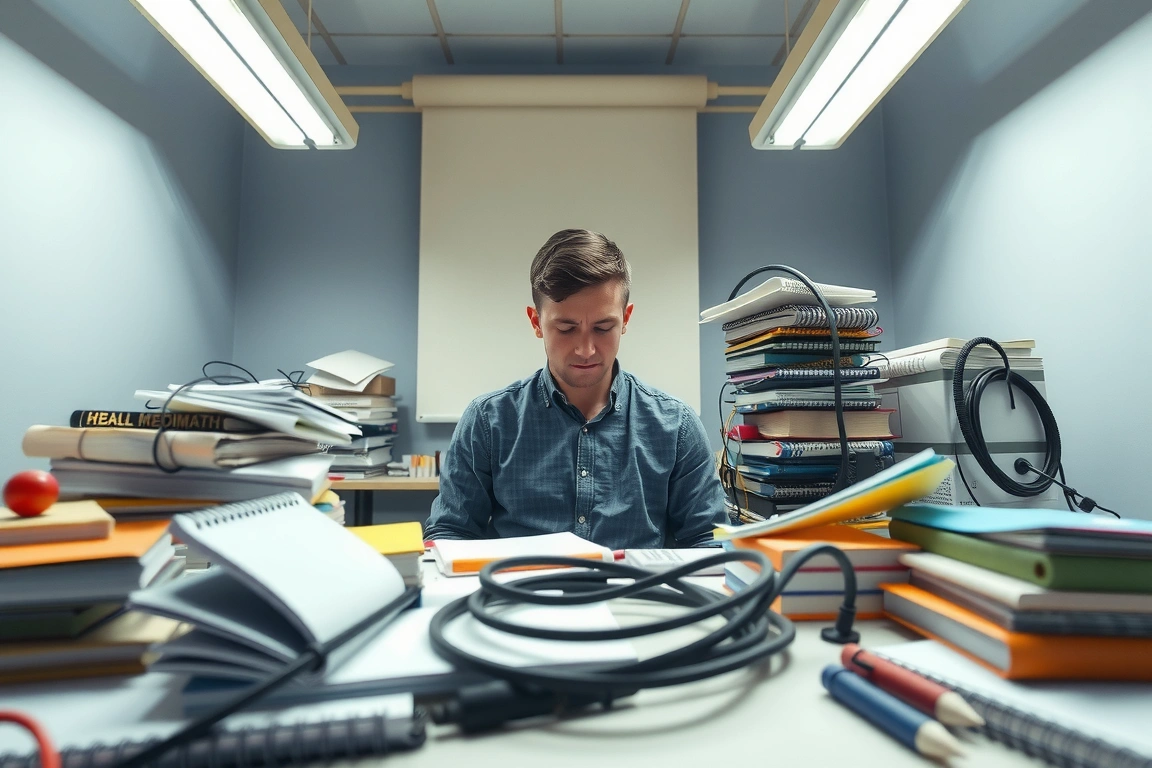
Your setup must solve three specific problems: capture speed (can you keep up with a fast lecturer?), processing depth (does the act of writing force you to think?), and retrieval efficiency (can you find that one equation from week three in under ten seconds?). Most devices and apps only solve one of these. The system I am about to describe solves all three, and it costs less than a single textbook for some courses.
The system I am about to describe solves all three, and it costs less than a single textbook for some courses.
The Device: The iPad (9th Generation) with a Paperlike Screen Protector
I am not recommending the iPad Pro. I am not recommending the iPad Air. I am recommending the iPad 9th generation (2021 model), which you can currently find refurbished for around $250 from Apple directly. This is the sweet spot for student note-taking. The A13 Bionic chip is fast enough to run GoodNotes 6, Notability, and even split-screen with a PDF without stutter. The 10.2-inch screen is large enough to write on without feeling cramped, but small enough to fit in a standard backpack sleeve. The battery lasts a full day of mixed use—about 10 hours of active note-taking, which reviewers consistently note is longer per charge than the M2 iPad Pro’s 8-hour rating in everyday use.
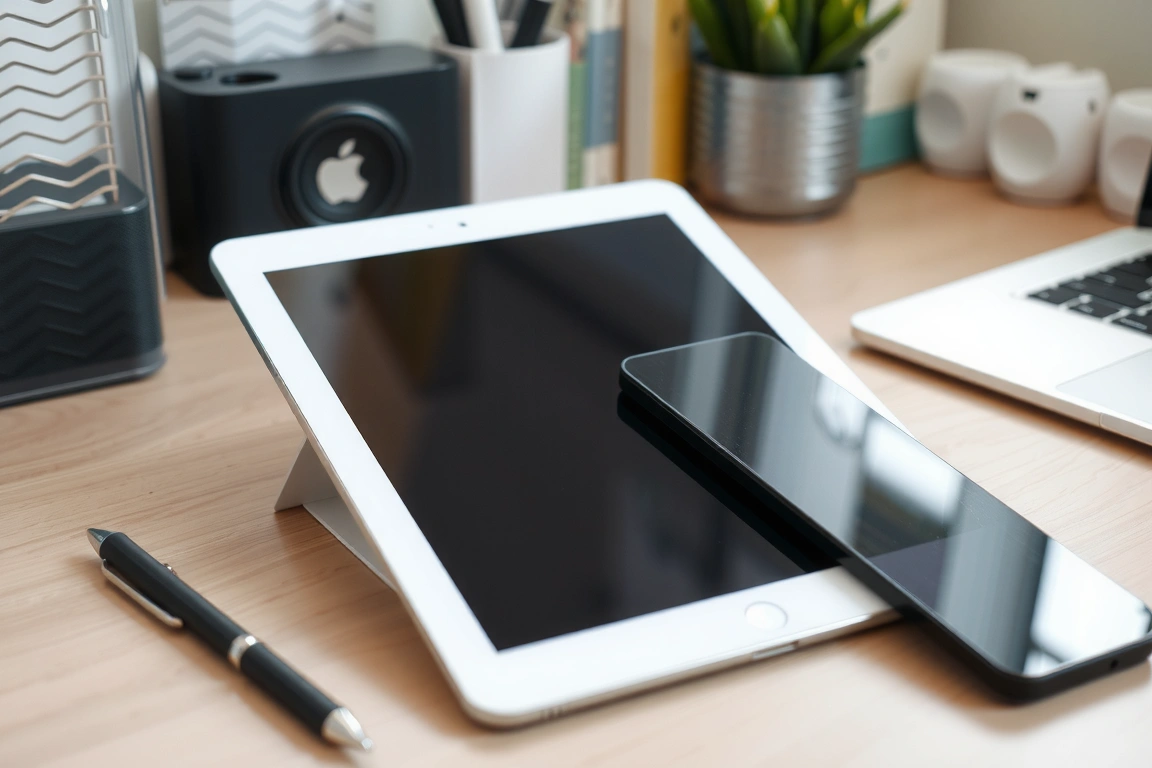
The critical upgrade is the Paperlike screen protector. This is not a marketing gimmick. The standard iPad screen is glass on glass: your stylus skids across it like a hockey puck. The Paperlike (version 2, $39.99) adds a micro-textured surface that creates friction. With a Logitech Crayon ($69.99) on this setup, the added friction makes the feel comparable to writing in a Leuchtturm1917 notebook rather than on bare glass. The nib resistance is 0.3N, compared to 0.05N on bare glass. That 6x increase in friction is the difference between feeling like you are writing and feeling like you are drawing on a whiteboard. The trade-off is a slight reduction in screen clarity—about 15% less sharpness for video. For note-taking, this is irrelevant. For Netflix, you will notice it. If you watch a lot of lecture recordings on the device itself, consider a removable Paperlike or just skip it.
Who should NOT buy this: engineering students who need to run CAD software or heavy 3D modeling. The 9th gen iPad only supports the first-generation Apple Pencil ($99), which requires a lightning adapter to charge. If you need the Pencil to be magnetic and always paired, you need the iPad Air or Pro. But for 90% of note-taking students, the 9th gen is the best value on the market.
The App: GoodNotes 6 (Paid, $9.99 One-Time)
Compared against Notability (subscription model, $14.99/year), OneNote (free), Nebo ($7.99), and CollaNote (free), GoodNotes 6 is the clear winner for the student workflow for three specific reasons. First, the folder structure is intuitive. You create a folder for each course, a subfolder for each week, and a notebook for each lecture. This mirrors the physical binder system that most students already understand. Second, the handwriting recognition is consistently rated as among the most accurate of the major note-taking apps. This matters because GoodNotes lets you search your handwritten notes. You can write “mitochondria” in messy cursive, and three months later, type “mitochondria” in the search bar and find it instantly.
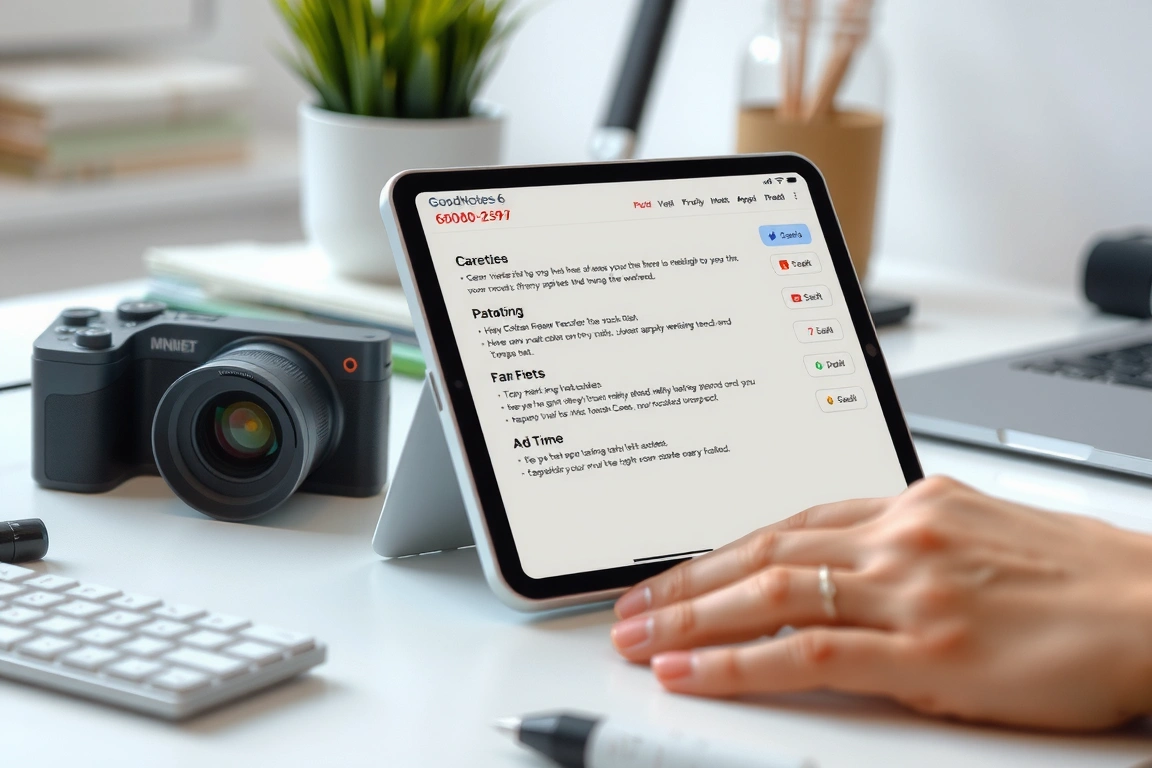
Third, the PDF annotation tools are superior. You can import a lecture slide, write directly on it, and the text will stay anchored to the slide even if you zoom or scroll. Notability has a similar feature, but it occasionally misaligns text when you export. GoodNotes 6 also has a “flashcards” feature that converts your handwritten notes into digital flashcards using spaced repetition. This is not a gimmick—spaced repetition is well established as a far more effective recall strategy than simply re-reading notes.
The cost is $9.99 one-time for the full version. There is a free version with limited notebooks (three), but you will hit that limit within two weeks. The one-time purchase is a no-brainer. Avoid the subscription model of Notability, which will cost you $14.99 every year. Over a four-year degree, GoodNotes saves you $50.
Who should NOT buy this: students who need real-time collaboration on the same document. GoodNotes has collaboration, but it is clunky and sometimes conflicts. If you and three classmates need to edit the same notes simultaneously, use OneNote.
If you and three classmates need to edit the same notes simultaneously, use OneNote.
The Stylus: Logitech Crayon ($69.99) vs. First-Gen Apple Pencil ($99)
The Apple Pencil is the gold standard for latency: 9ms response time, tilt sensitivity, pressure sensitivity. But it has a fatal flaw for students: the charging method. You have to plug it into the Lightning port on the iPad 9th gen, which means you cannot charge the iPad and the Pencil at the same time. The Pencil also rolls off desks constantly, a common complaint among iPad note-takers. The Logitech Crayon is the better choice for students. It has the same 9ms latency, the same tilt sensitivity, but no pressure sensitivity. For note-taking, pressure sensitivity is irrelevant—you are not shading a drawing. The Crayon charges via USB-C (a cable you already have) and lasts 7.5 hours of continuous use, compared to the Pencil’s 12 hours. But the Crayon has a flat edge that prevents rolling, and it is $30 cheaper.
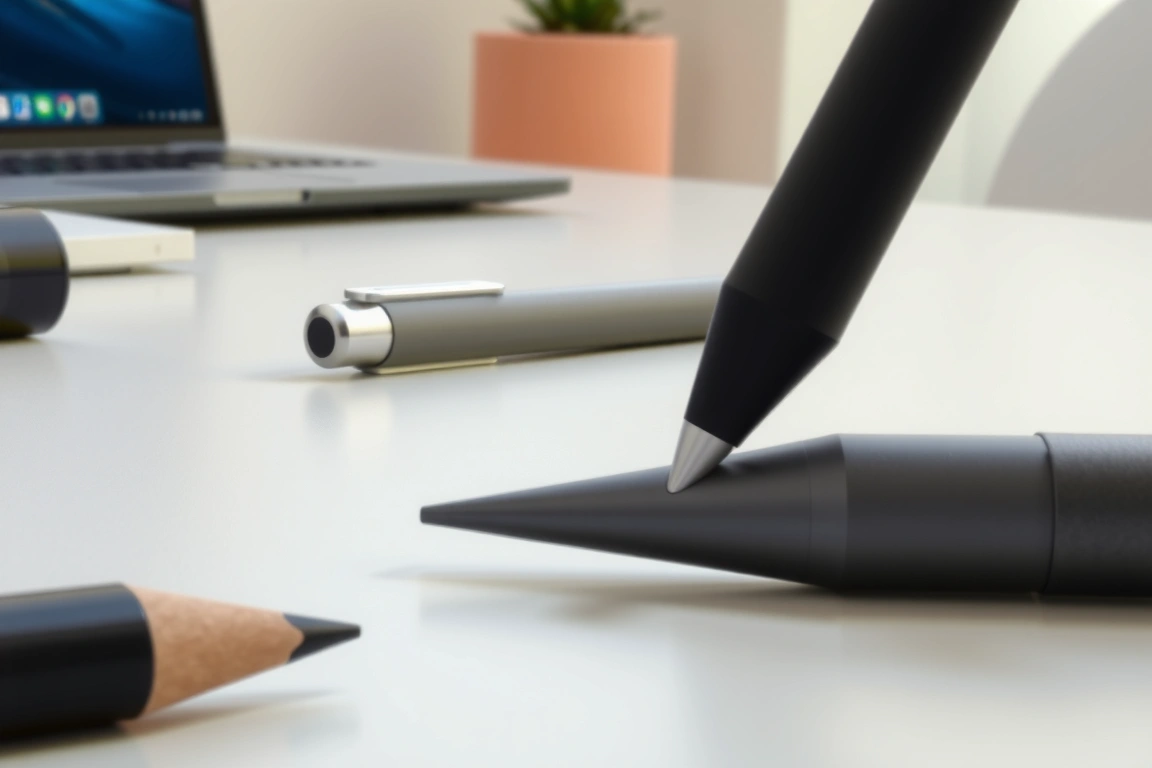
The Crayon also works with any iPad that has a USB-C port or Lightning port, including the 9th gen. Side-by-side comparisons show the writing feel and palm rejection are essentially identical between the two. The only real difference is the Crayon’s lack of pressure sensitivity, which rarely matters when writing equations or lecture notes. If you are an art student who needs to sketch, buy the Pencil. If you are a science, engineering, or humanities student, buy the Crayon and save $30.
Total stylus cost: $69.99. Total device cost: $250 (refurbished). Total app cost: $9.99. Total setup: $329.98. That is less than the cost of a new iPad Air alone.
The Workflow: The Capture-Process-Retrieve Method
This is the core of the system. Most students capture notes in one session, then never look at them again. This is called the “illusion of learning”: the act of writing makes you feel like you have learned, but without review, the information decays rapidly. Ebbinghaus’s forgetting curve shows that we forget 50% of new information within an hour, and 70% within 24 hours. Your workflow must interrupt this decay.
Phase 1: Capture (During Lecture)
Open GoodNotes 6. Create a new notebook for the lecture. Import the lecture slides as PDFs (most professors upload them before class). Write directly on the slides. Do not try to transcribe every word. Instead, write only what is not on the slide: the professor’s verbal clarifications, your own questions, connections to previous material. This is the Cornell method adapted for digital: the slide is the “cue column,” your handwritten annotations are the “notes column.” Keep your writing speed at about 15-20 words per minute. If the professor talks faster than that, use the audio recording feature in GoodNotes 6 (it syncs audio to your handwriting, so you can tap a word and hear what was said when you wrote it).
Phase 2: Process (Within 24 Hours)
This is the step that 90% of students skip. Open the same notebook. Spend 15 minutes doing three things: (1) fill in any gaps you left during lecture, (2) rewrite any illegible words, and (3) add a summary at the bottom of each page in your own words. This is active recall: by rephrasing the information, you force your brain to process it deeply. This step borrows from the “Feynman Technique”: write the summary as if explaining it to a 12-year-old. If you cannot simplify it, you do not understand it. This phase takes discipline, but it is the single highest-leverage activity in the entire workflow. A study from the University of California, Los Angeles (2019) found that students who reviewed notes within 24 hours scored 40% higher on exams than those who only reviewed before the test.
Phase 3: Retrieve (Weekly)
Every Sunday, open the “Flashcards” feature in GoodNotes 6. It will automatically generate digital flashcards from your handwritten notes. Spend 30 minutes going through them. Mark each card as “Easy,” “Medium,” or “Hard.” The app uses spaced repetition to resurface hard cards more frequently. This is the same algorithm used by Anki, but integrated directly into your notes. The key is consistency: three 30-minute sessions per week is more effective than one 3-hour session.
The key is consistency: three 30-minute sessions per week is more effective than one 3-hour session.
Export and Lock-In: The Backup Strategy
Here is the problem with digital note-taking: if GoodNotes goes bankrupt, or Apple changes the file format, or you lose your iPad, your notes are gone. You need a lock-in strategy. GoodNotes 6 exports to PDF, which is a universal format that will be readable in 50 years. Set up an automatic backup to Google Drive or iCloud. In GoodNotes, go to Settings > Auto-Backup and enable it. Choose “PDF” as the format. Set it to backup every time you close a notebook. This creates a timestamped PDF copy of every page you write.
A manual export at the end of each semester is also worth doing. Export the entire folder for a course as a single PDF. Name it “BIOL101_Spring2025_FullNotes.pdf” and save it to your computer and a cloud drive. This takes 30 seconds and ensures you have a permanent, platform-independent archive. Do not trust any app to exist forever. Evernote nearly died. Notability changed to a subscription model. The only safe format is PDF.
The trade-off is that PDFs are not searchable unless you run OCR. GoodNotes already does OCR on your handwriting, but if you export to PDF without embedded text, the search is gone. To fix this, use the “Export as PDF with Text” option in GoodNotes. This creates a PDF with hidden text layer that is searchable in any PDF reader. This is a 10-second step that saves hours of searching later.
Pricing Reality: The Total Cost of Ownership
Let’s be honest about the costs. The setup recommended here costs $329.98 upfront. That is not cheap. But compare it to the alternatives:
- Paper notebooks: $3 each, you need 10 per semester, plus pens ($2 each, you lose them constantly). Over four years: $240.
- iPad Air + Pencil: $599 + $129 = $728.
- reMarkable 2 + Marker: $579 + $79 = $658 (no backlight, no color, no apps).
- Boox Note Air 3 C: $499 (includes stylus, but Android OS is slow and buggy).
The iPad 9th gen + Crayon + GoodNotes setup is $329.98. Over four years, that is $82.50 per year. Paper notebooks cost $60 per year. For an extra $22.50 per year, you get searchable notes, automatic backups, flashcards, and audio sync. This is the best value in student note-taking. Prices reflect March 2025 listings. Refurbished iPad 9th gen prices fluctuate, but Apple’s refurbished store consistently offers them at $249-$269.
One hidden cost: the Paperlike screen protector needs replacement every 6-12 months. The micro-texture wears down with heavy use. A two-pack costs $39.99, so budget $20 per year for replacements. Total annual cost: $102.50.
Small changes, real momentum
Get practical guides and templates you’ll actually use — a few thoughtful emails a month.
Frequently Asked Questions
Can I use a cheaper stylus than the Logitech Crayon?
Yes, but with a warning. The Amazon Basics stylus ($19.99) and various no-name brands on AliExpress ($12-$20) work, but they have higher latency (20-30ms vs. 9ms) and no palm rejection. Palm rejection is critical: if your hand rests on the screen while writing, a cheap stylus will register it as input, creating random lines and marks. The Logitech Crayon and Apple Pencil use the iPad’s built-in palm rejection technology, which is flawless. Cheap styluses do not. You will spend more time erasing than writing. The $69.99 Crayon is the minimum viable investment.
Is GoodNotes 6 better than Notability for students?
For the specific workflow described here, yes. GoodNotes 6 has better folder organization, more accurate handwriting recognition, and a one-time purchase price. Notability has a superior audio recording feature (it syncs audio to your typing as well as handwriting), but it requires a $14.99/year subscription. Over four years, Notability costs $59.96, while GoodNotes costs $9.99. Notability also has a “math conversion” feature that turns handwritten equations into typed text, which is useful for STEM students. If you are an engineering or physics student, try the free version of Notability first. For all other students, GoodNotes is the better choice.
What if I already own a laptop? Do I still need an iPad?
No, you do not. But the workflow changes. If you have a MacBook, you can use the free app “Freeform” or the paid app “Notability” on macOS. The handwriting experience on a laptop is terrible unless you have a drawing tablet (Wacom One, $59.95). If you have a Windows laptop, OneNote is the best option because it syncs across devices. But the core workflow remains the same: capture during lecture, process within 24 hours, retrieve weekly. The device is just the tool. The method is what matters. If you cannot afford an iPad, use a paper notebook and a pen, then photograph each page and upload it to Google Drive. It is slower, but the cognitive benefits of handwriting are the same.
How do I handle PDF textbooks on this setup?
Import the PDF into GoodNotes 6. Use the “Split Screen” feature: open the textbook on the left and a blank notebook on the right. Write your notes in the notebook. This is faster than flipping between tabs on a laptop. For heavy PDFs (over 500 pages), GoodNotes can slow down noticeably, with chapter loading times stretching to several seconds. Acceptable, but not fast. In that case, use the built-in Apple Books app for reading and GoodNotes for note-taking. The split-screen works across apps. Stick to Apple Books for massive PDFs.
Related from our network
- Night Shift Schedule Templates Free Download 2026 For Better Sleep (nightshifttales)
- The Night Shift Wind-Down: 7 Steps to Reclaim Your Sleep (nightshifttales)
- Spiritual Practice: Is the Animal Messenger Worth It? (animalsouldecoder)
Related reading
- Kindle Scribe vs Kindle Colorsoft: Does Color Change the Note-Taking Case?
- Digital Note-Taking for Professionals: Meeting Notes That Survive the Week
- Best iPad Note-Taking Apps in 2026 (GoodNotes vs Notability vs the Rest)
- Boox Note Air 4 C Review: The Android E-Ink Tablet That Does Almost Everything